Your own app on the reader
How do I build my own payment app on a PAX reader (A920 MAX, A35) with Merchant360?
- For
- An Android developer building the merchant's app on the reader itself: its own screens for the order, the cart, sale, refund and void, with Merchant360 taking the card (for example a standalone app on an A920 MAX).
- Key
- No API key in your app. Your app is allowed on each reader by its package name and signing certificate; the reader's own Merchant360 login does the rest.
You build your app. The Merchant360 Payment App is installed on the same reader and does only the card step. Your app adds the small Merchant360 Terminal SDK library and calls sale(). The Payment App comes to the front for the card step, then gives the screen back to your app with the result. Your app never sees a card number and never talks to Handpoint.
Every sale is a Merchant360 payment (tp_…): it shows in the merchant’s reports, sends webhooks, and can be voided or refunded like any other. The merchant’s pricing program (surcharge or dual pricing), tips, keyed-entry rules and pre-auth limits apply on their own.
sale(2500, "order-1042")Status: Terminal SDK 1.3.0 with Merchant360 Payment App 2.46.4 (2.46.0 without .printReceipt, 2.45.x without your own settings, 2.44.2 for sales only). Tested on an A920 MAX (sale, cancel, repeated reference, status, refusals); the first approved card sale runs on a production reader next, and the card-step screenshots come from it.
- 1. Ask Electronic Payments to set up the reader(we do this)
- 2. Register your app and allow it on readers
- 3. Add the Terminal SDK to your app
- 4. Connect to the Payment App
- 5. Match the reader's settings(optional)
- 6. Read your own settings(optional)
- 7. Take a payment
- 8. Choose the per-sale options(optional)
- 9. Read the result and print your receipt
- 10. Handle a lost answer
- 11. Cancel from your app(optional)
- 12. Void, refund, tip adjust, capture
- 13. Show the error code
- 14. Test, then publish through PAXSTORE
Ask Electronic Payments to set up the reader
Electronic Payments does thisOnce per readerBefore your app can take a payment, Electronic Payments:
- Boards the merchant and activates the reader with the Merchant360 Payment App (2.44.2 or later), using its 8-digit activation code.
- Sets the reader’s Terminal mode to Payment service in ISO360. In this mode the Payment App never locks the reader, never opens by itself, and shows no menu: your app is the merchant’s app.
- Allows your app on the reader. An ISV does this itself: register the app once in the ISV portal (App settings) and switch it on for each reader on the merchant’s page (step 2).
- Turns on what the merchant needs: keyed sales (MOTO), pre-auth, tips, the pricing program.
An ISV sets the same Terminal mode for its connected merchants’ readers in the ISV portal (Devices).
Register your app and allow it on readers
RequiredOnce (again if you change the signing key)The reader serves only the apps allowed on it. Register your app once with two values:
- Your package name (your
applicationId), for examplecom.grailpay.pos. - The SHA-256 of the certificate your release APK is signed with. Get it with one of the commands below.
Where: the ISV portal, App settings, Register an app (or POST /isv/apps with your platform key). Then, on each merchant’s page, Your app on these readers: switch your app on for the readers it runs on (POST /isv/apps/{id}/readers). Not an ISV? Send Electronic Payments the two values and they allow it.
Add every certificate your app may carry (debug, PAXSTORE-signed). Not sure which one the reader sees? Run one sale anyway: the refusal (app_not_allowed) shows the exact certificate SHA-256 the reader saw. Add that value to the app.
# From the signed APK (Android SDK build-tools):
apksigner verify --print-certs app-release.apk
#   Signer #1 certificate SHA-256 digest: 3a7f0c2d...e8f9

# Or from your keystore:
keytool -list -v -keystore release.jks -alias release
#   SHA256: 3A:7F:0C:2D:...:E8:F9

# What Electronic Payments enters (colons or not):
com.grailpay.pos 3A:7F:0C:2D:...:E8:F9Add the Terminal SDK to your app
RequiredOnce- Electronic Payments sends you
m360-terminal-sdk-1.3.0.aar. Put it in your app module’slibsfolder. - Add the line below to your app’s
build.gradle. - Nothing else: no permission, no API key and no Handpoint library. The SDK’s manifest adds the
<queries>entry Android 11+ needs to find the Payment App.
Minimum: Android 7.0 (API 24). PAX A35, A920 and A920 MAX readers run Android 10 or later.
// app/build.gradle
dependencies {
    implementation files("libs/m360-terminal-sdk-1.3.0.aar")
}Connect to the Payment App
RequiredEach time your app startsConnect once, for example in your main Activity’s onCreate, and disconnect in onDestroy. Every listener runs on the main thread, so you can update your screen directly.
When the Payment App is updated through PAXSTORE, the connection drops for about half a minute; the SDK connects again by itself and calls onConnected again.
If onFailed runs, show the message. payment_app_not_installed and payment_app_too_old mean the reader needs the Payment App or an update from Electronic Payments through PAXSTORE.
import com.merchant360.terminal.*;

M360Terminal terminal = new M360Terminal(this);

terminal.connect(new M360Terminal.ConnectListener() {
    @Override public void onConnected(M360Terminal t) {
        payButton.setEnabled(true);
    }
    @Override public void onFailed(String errorCode, String message) {
        showError(message);            // e.g. "payment_app_too_old"
    }
});

// onDestroy():
terminal.disconnect();Match the reader's settings
OptionalAfter connect, and when they changeterminal.readerSettings() tells your app how Electronic Payments set up this reader, so your screens can match it: hide your Keyed button when keyed sales are off, show the surcharge percent before the sale, put the merchant’s name and address on your receipt. Read-only; the same values the card step uses.
- Keyed:
isMotoEnabled(),isCvvRequired(),isAvsRequired() - Pre-auth:
isPreAuthEnabled(),getPreAuthMinCents(),getPreAuthMaxCents() - Tips:
isTipEnabled(),getTipPercentages() - Pricing:
getPricingProgram()(none, surcharge, dual_pricing, cash_discounting, admin_fee),getSurchargePercent() - Card step:
getSignatureOnScreen(),isCancelButtonOn(),getMaxSaleCents(),getCurrency(),getLanguage() - Receipt:
getMerchantName(),getMerchantAddress(), city, state, ZIP, phone,getMidLast4(),getTerminalSerial()
Do not keep your own copy of these: if your app said keyed was on and the reader said off, the sale would be refused. setReaderSettingsListener() tells you when Electronic Payments changes them. Needs Payment App 2.45.0; on 2.44.x readerSettings() returns null.
ReaderSettings rs = terminal.readerSettings();
if (rs != null) {
    keyedButton.setVisibility(rs.isMotoEnabled() ? View.VISIBLE : View.GONE);
    receiptHeader.setText(rs.getMerchantName() + " " + rs.getMerchantAddress());
}
terminal.setReaderSettingsListener(updated -> applyReaderSettings(updated));Read your own settings
OptionalAfter connect, and when they changeDefine your own settings for your app (up to 250) and set them for all your merchants, one merchant or one reader. Your app reads the value for its reader; there is nothing to host.
- ISV portal, App settings, Settings for your app: Add setting. Give it a key your code uses (
printKitchenTicket), a label, a type (on / off, choice, several choices, text, whole number, amount, percent), a default, and whether it can differ per reader. OrPUT /isv/app-settings/definitions/{key}. - Set values: Values for all your merchants on the same page; one merchant or one reader on the merchant’s page. Or
PATCH /isv/app-settings/values,PATCH /app-settings,PATCH /terminal/devices/{id}/app-settings. The reader’s value wins, then the merchant’s, then all merchants, then the default. - In your app:
terminal.partnerSettings()andsetPartnerSettingsListener(). Changes reach the reader at once.
Not for passwords, keys or tokens: values are stored as entered and kept on the reader. Billing: $1.00 per reader per month, for each reader that received your settings that month, on Electronic Payments’ monthly invoice. Needs Payment App 2.46.0 and SDK 1.2.0.
PartnerSettings ps = terminal.partnerSettings();   // null before 2.46.0 or if not allowed
boolean kitchen = ps != null && ps.getBoolean("printKitchenTicket", false);
long maxCashBack = ps == null ? 0 : ps.getLong("maxCashBackCents", 0);
List<String> tabs = ps == null ? List.of() : ps.getStringList("tabs");

terminal.setPartnerSettingsListener(updated -> applySettings(updated));Take a payment
RequiredEvery saleCall sale() with the amount in cents and your own reference for the sale, for example your order number. Use a new reference for every sale and keep it: it is what stops a second charge (step 8).
The Payment App then comes to the front and runs the card step. The customer sees, in order:
- The amount, with the surcharge notice when the merchant has a surcharge program (the percent is shown before the card).
- The tip screen, if you asked for it or the merchant’s tip setting is on.
- Tap, insert or swipe (contactless, EMV chip, magnetic stripe), with a Cancel button unless you turned it off.
- PIN on the PAX secure keypad when the card asks, and the signature screen when the merchant’s “Signature on screen” setting asks for it.
- Approved or Declined for 2 seconds. Then the Payment App goes to the back and your app is in front again, with the result.
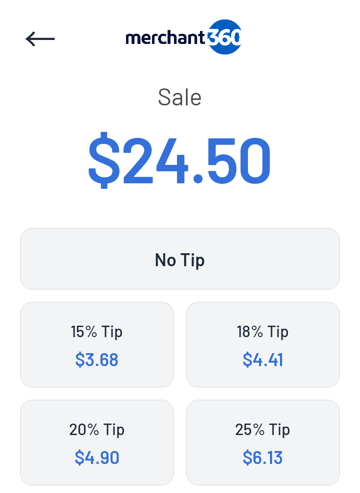
The Payment App prints nothing and shows no receipt choices for your sales: your app prints or sends the receipt (step 7).
SaleRequest req = SaleRequest.sale(2500, "order-1042");   // $25.00

terminal.sale(req, result -> {
    switch (result.getOutcome()) {
        case PaymentResult.APPROVED:
            saveOrderPaid(result.getPaymentId(), result.getApprovedCents());
            printReceipt(result);
            break;
        case PaymentResult.DECLINED:
            showMessage("Declined: " + result.getMessage());
            break;
        case PaymentResult.CANCELLED:
            showMessage("Cancelled");
            break;
        default: // ERROR: the sale did not start
            showMessage(result.getErrorCode() + ": " + result.getMessage());
    }
});Choose the per-sale options
OptionalAny sale.tipPrompt(true): the tip screen.false: no tip. Not set: the merchant’s tip setting..allowKeyed(true): a Key enter card button for a card that will not read..keyed(): open keyed entry at once (phone order). The card number is typed on the Payment App’s own secure screen, never in your app. Needs keyed sales (MOTO) on the merchant. By default the reader then asks for CVV, ZIP and street number..allowCancel(false): no Cancel button on the card screen for this sale..printReceipt(true): the Payment App prints or offers the receipt for this sale, for an app that cannot print. Not set: the receipt is yours to give (SDK 1.3.0, Payment App 2.46.4)..level2(taxCents, taxExempt, poNumber): Level 2 data for business cards.SaleRequest.preAuth(amount, ref): a hold instead of a sale (hotel, rental). Card read only: no tip, no keyed entry. Needs pre-auth on the merchant; the merchant’s smallest and largest hold apply.
SaleRequest req = SaleRequest.sale(4200, "order-1043")
        .tipPrompt(true)
        .allowKeyed(true)
        .level2(310L, false, "PO-7781");

SaleRequest hold = SaleRequest.preAuth(15000, "room-212");Read the result and print your receipt
RequiredEvery sale| Field | What it is |
|---|---|
getOutcome() | APPROVED, AUTHORIZED (a hold), DECLINED, CANCELLED or ERROR |
getPaymentId() | The Merchant360 payment id (tp_…). Save it: void, refund and lookups use it. |
getApprovedCents() | The total charged: your amount + surcharge + tip |
getSurchargeCents(), getTipCents() | The parts the reader added |
getCardBrand(), getCardLast4() | For example VISA, 4242. Never the full card number. |
getAuthCode(), getTransactionId() | Approval code and the gateway’s id |
getEntryMethod() | chip, contactless, swipe or keyed |
getCancelSource() | terminal (Cancel on the reader) or pos (your cancel()) |
getMessage(), getErrorCode() | Why it was declined, or why it did not start |
Print the receipt on the reader’s printer with your own layout. Show at least the merchant’s name and address, the date and time, the total, the card brand and last 4, the entry method and the auth code. When there is a surcharge, show it as its own line labeled “Surcharge”.
Handle a lost answer
RequiredAfter a crash or restartIf your app restarts during a sale, or never gets the result, do not start a new sale with a new reference. Do one of these:
- Call
terminal.status(reference): the reader’s result for that reference, ornullif it has none. - Call
sale()again with the same reference. If that sale already finished, you get its result again (isRepeat()is true) and the card is not charged again.
PaymentResult r = terminal.status("order-1042");
if (r == null) {
    // no result on this reader: safe to run the sale again with the same reference
    terminal.sale(SaleRequest.sale(2500, "order-1042"), this::onResult);
}Cancel from your app
OptionalWhile the customer has not paidterminal.cancel(reference) stops the sale while no card was read yet. The result comes as CANCELLED with getCancelSource() = pos. A card already being read finishes, and you get its real result.
During the card step the Payment App covers the screen, so a clerk cancels with the Cancel button on that screen (the result then says terminal). Call cancel() from your code, for example when your own timer runs out or the order is voided elsewhere.
cancelButton.setOnClickListener(v -> terminal.cancel("order-1042"));Void, refund, tip adjust, capture
RequiredWhen the clerk asksThese run through the Merchant360 API with the payment id, from your server (or from Merchant360 itself). They need no card on the reader:
POST /payments/{id}/void: undo an approved sale the same day.POST /payments/{id}/refund: money back after the batch closed; sendamountfor part of it.POST /payments/{id}/tip-adjust: change the tip on an approved sale.POST /payments/{id}/capture: charge a hold (AUTHORIZED);/voidreleases it.
Your server uses your platform key with M360-On-Behalf-Of (an ISV), or the merchant’s key. Never put an API key in the app on the reader. These calls are planned for a later SDK version.
POST /payments/tp_5b0e…/void
Authorization: Bearer m360_isv_…
M360-On-Behalf-Of: MERCHANT_ID
Idempotency-Key: void-order-1042Show the error code
RequiredAny ERROR result| Code | What to do |
|---|---|
payment_app_not_installed | The reader has no Merchant360 Payment App. Electronic Payments installs it. |
payment_app_too_old | Electronic Payments updates the Payment App to 2.44.2 or later. |
not_connected | Call connect() again. |
not_activated | The reader is not activated with Merchant360. |
mode_not_service | The reader is not in Payment service mode (step 1). |
app_not_allowed | Your app is not on the reader’s list. The message shows the package and certificate the reader saw: send them to Electronic Payments. |
busy | Another sale or a staff screen is open on the reader. Try again in a moment. |
reader_unavailable | No internet, or the Payment App could not open. Call status(reference) before you try again. |
moto_not_enabled, preauth_not_enabled | Keyed sales or pre-auth are off for the merchant. |
amount_too_small, amount_too_large | Outside the merchant’s pre-auth limits. |
bad_request | For example a pre-auth with a tip prompt. The message says what to change. |
Test, then publish through PAXSTORE
RequiredBefore go-live- Electronic Payments sets up a test reader (step 1) and adds your debug certificate too.
- Run a $1.00 sale (
sale(100, …)), tap a card, check the result, then void it with its payment id. - Run one with
.tipPrompt(true), one cancelled from your app, and onestatus()after closing your app mid-sale. - Upload your release APK to your PAXSTORE developer account. PAX signs it; production PAX readers install only signed apps.
- Electronic Payments pushes your app and the Payment App to the merchant’s readers through PAXSTORE.
Transaction types
| Type | How |
|---|---|
| Sale (tap, chip, swipe) | SaleRequest.sale(amount, reference) |
| Sale with tip screen | .tipPrompt(true) |
| Keyed sale (MOTO) | .allowKeyed(true) or .keyed() |
| Pre-authorization (hold) | SaleRequest.preAuth(amount, reference) |
| Level 2 | .level2(taxCents, taxExempt, poNumber) |
| Cancel before the card | cancel(reference) or the reader’s Cancel button |
| Void, refund, tip adjust, capture | Merchant360 API with the paymentId, from your server (step 10) |
Not in SDK 1.0.1: saving the card on file, incremental authorization, a card-present refund on the reader, gift cards, loyalty and text to pay.
Which reader settings apply to your sales
| Applies (the card step) | Does not apply (your screens) |
|---|---|
| Pricing program: surcharge notice and amount, dual pricing, Surcharge confirmation screen | Receipts and their layout |
Tips, when you do not set .tipPrompt() | Items and start screen |
| Signature on screen | Cash, gift cards, text to pay |
| Keyed sales (MOTO), Require CVV / Require AVS | Invoice number and clerk prompts |
| Pre-authorization and its limits | Reports and batch reports |
| Cancel button on the terminal, amount limits | Supervisor PIN, kiosk lock |
| Logo on screen, language, currency | |
| Loyalty: the reader never asks for a loyalty phone on your sales |
What Electronic Payments sets for each reader
| Setting (ISO360) | Why your app cares | When it is off |
|---|---|---|
| Terminal mode = Payment service | The Payment App stays in the background | mode_not_service |
| Apps allowed on this reader | Your package + certificate | app_not_allowed |
| Keyed sales (MOTO) | .allowKeyed() and .keyed() | moto_not_enabled |
| Pre-authorization (and its limits) | SaleRequest.preAuth() | preauth_not_enabled |
| Pricing program | Surcharge notice and the surcharge in the result | No surcharge |
| Tips | Tip screen when you do not set .tipPrompt() | No tip screen |
| Signature on screen | Signature screen on the reader | No signature screen |
| Cancel button on the terminal | Cancel button when you do not set .allowCancel() | No Cancel button |
Other ways to put payments in your own app
- Your app sends the sale through the API from anywhere (a tablet at the counter, your cloud): the POS guides. The reader runs the Payment App in POS Listener mode.
- Your app sends card data (
card_presentonPOST /payments): a preview, refused for production keys until EMV certification and P2PE keys are in place.